Choose the page you want to change
| Section | Purpose |
|---|---|
| Collection page | Products inside one collection. /collections/all is the all-products collection. |
| Collections page | The collections overview at /collections, with Collections per page and pagination. |
| Collection list | A section you can add to Home page or another compatible template to feature selected collections. |
Configure a product collection
- Open the collection template and select a collection to preview.
- Open Collection page. Choose Desktop layout: Sidebar or Drawer. Set Products per page and Products per row (mobile).
- Enable Show filters and Show sort by as required. The actual available filters depend on Shopify’s search/filter configuration and product data.
- Set Color filter display to Color swatches or Checkboxes. Review the price endpoints and filter counts with a small and a large collection.
- Preview applying and clearing filters, pagination, and a filter combination with no results. Check the mobile filter drawer separately.
Create a circular category list
- Add Collection list, then set Layout to Circle.
- Choose Collections source: Manual collections for a selected list, or Collection blocks for per-card controls.
- With Collection blocks, add a Collection block and select a collection for each card. Use Hover scene image to supply an alternative scene for hover-capable devices.
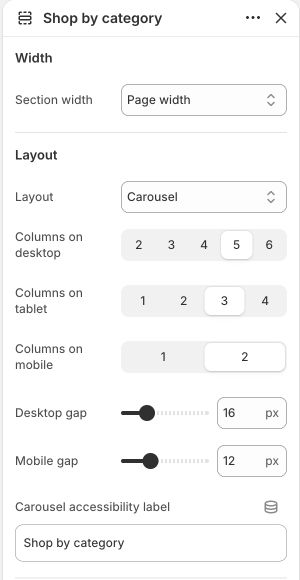
- Adjust desktop columns and gaps. The Circle layout becomes a horizontal scrolling row on mobile. The collection title and product count remain visible.
Manage the collections overview
Open the collections overview template and select Collections page. Set Collections per page, Grid item width, Grid spacing and Columns on mobile. For a curated selection elsewhere, use Collection list instead of changing which collection records exist in your store.