Set the shared design first
- Open Theme settings → Colors to set the main background, foreground, accent, borders and focus ring.
- Open Color schemes to edit reusable palettes. Select the appropriate Color scheme in individual sections that offer this control.
- Open Typography. Choose Primary for body text and Heading font for headings. Use Heading weight to select Font default, 400, 500, 600 or 700.
- Adjust Heading scale, line height and letter spacing after choosing the fonts. Preview a long heading on mobile before saving.
- Open Layout to set Page width, Desktop page margin, Mobile page margin and Section spacing.
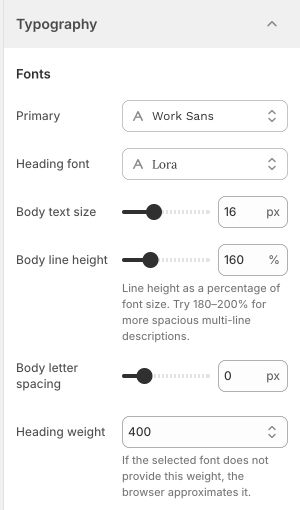
A font may not include every weight. When a selected weight is unavailable, the browser approximates it. Check the actual storefront font at the intended weight rather than judging from the number alone.
Choose section width
| Option | Use it for |
|---|---|
| Page width | Content aligned with the global page margins. |
| Full width | Edge-to-edge media or backgrounds. |
| Custom width | A narrower or wider composition using the section’s percentage control. |
Use a background image
- Open a section that offers Section background image or Background image and select an image.
- Set the image’s focal point in Shopify’s image tools. Where the section provides desktop and mobile media position controls, adjust those too.
- If available, choose Scroll with section or Fixed to viewport under Background behavior. Fixed backgrounds stay behind the content as the page moves.
- Set the overlay color and opacity so text and buttons remain readable. Check desktop and a real phone; mobile browsers can render fixed backgrounds differently.
Hero slideshow, Promo banner, Gallery and other media sections have their own layout controls. A dedicated Mobile image is useful when a wide scene crops poorly on a phone. Avoid placing essential text inside the image: enter it in the section’s text fields.
Keep images sharp without unnecessary weight
- Upload a sharp original rather than a screenshot or an enlarged thumbnail. Use a consistent image ratio for product grids; 1:1 is a useful starting point for square product photography.
- For wide banners, choose an original large enough for the intended desktop display and check the mobile crop separately. There is no single image dimension that suits every layout.
- Use meaningful alternative text for informative images. Keep filenames and alt text descriptive rather than repeating keywords.
- Preview zoom, focus states and long text. Do not reduce contrast to match a photograph.